Event 12 Time-Service and the PDC Emulator Role
September 22, 2011 Leave a comment
After moving the PDC emulator FSMO (Felixible Single Operation Master) Role to a new Domain Controller, you will see the following event in your System event log:
Event ID: 12 Source: Time-Service
Time Provider NtpClient: This machine is configured to use the domain hierarchy to determine its time source, but it is the AD PDC emulator for the domain at the root of the forest, so there is no machine above it in the domain hierarchy to use as a time source. It is recommended that you either configure a reliable time service in the root domain, or manually configure the AD PDC to synchronize with an external time source. Otherwise, this machine will function as the authoritative time source in the domain hierarchy. If an external time source is not configured or used for this computer, you may choose to disable the NtpClient
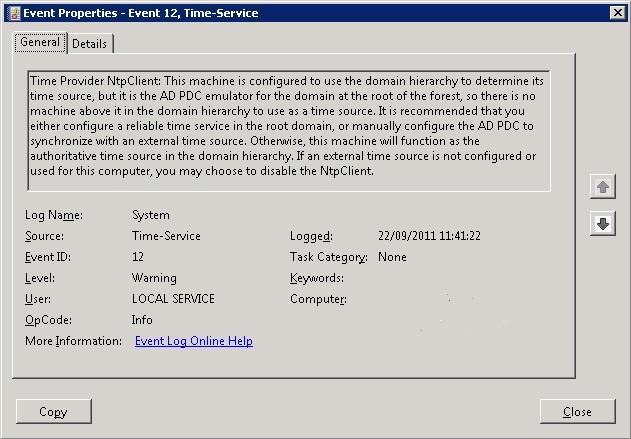
Event ID: 12 Source: Time-Service
This is due to the fact that the new server hosting the PDC Emulator role is still set to sync time from another Domain Controller within your domain (i.e. through Domain Hierachy). The PDC emulator should be set to sync time with a highly reliable external time source, as it acts as the authoritative time source for your domain. This helps to ensure that time synchronisation between the servers and computers in your network is always accurate.
In order to resolve this event there are two steps. The first is to set the new PDC emulator to sync time with an external time source. The are many time (NTP) servers available on the Internet. The NTP Pool Project is an excellent service which provides as accurate time service for all geographical areas.
You can use the w32tm command to set your new PDC emulator to sync with an external ntp server. On your new PDC Emulator run the following command:
w32tm /config /manualpeerlist:”time.windows.com,0x1 0.ntp.pool.org,0x1″ /syncfromflags:manual /reliable:yes /update
Notice that in the /manualpeerlist part of the command the time.windows.com and 0.ntp.pool.org servers have been specified. Please choose whichever external time source you prefer to use.
Restart the time service on the new PDC Emulator by running the following commands:
net stop w32time
net start w32time
The second step is to set the old PDC emulator back to syncing time through the domain hierachy. To do this you need to use the w32tm command again, but with different parameters. Run the following command on the server that used to act as your PDC Emulator:
w32tm /config /syncfromflags:domhier /reliable:no /update
Finally, restart the time service on the old PDC Emulator by running the following commands:
net stop w32time
net start w32time
You may find that some of your existing domain controllers show Event 129 Source: Time-Service in the logs after making this change. The specific error is:
NtpClient was unable to set a domain peer to use as a time source because of discovery error. NtpClient will try again in 15 minutes and double the reattempt interval thereafter. The error was: The entry is not found. (0x800706E1)
This is due to the fact the domain controllers are still trying to use the old PDC Emulator as their time source. You can quickly rectify this by running the command:
w32tm /resync /rediscover
If you want to verify the time source that a domain controller is using run the command:
w32tm /query /source


 oasysadmin