Enabling root SSH access on an ESX host over the network

This post explains how to enable root SSH access on an VMware ESX host over the network, when you don’t have physical access to the server console. Root SSH access is disabled by default. Before enabling root SSH access please assess any security implications of this action in your environment.

Firstly, use the vSphere client to access the host directly. i.e. connect directly to the IP address or hostname of the host rather than logging in to vCenter. Log in using the root account. Once logged in highlight the ESX host in the left pane of the screen, and then click on the local users and groups tab in the right hand pane of the screen, as shown below:

local users and groups

Right click anywhere in the list of users and choose ‘Add’. Enter the details for your new user account as shown below, making sure that you tick the ‘Grant shell access to this user’ check box. You will also need to specify a password of more than 8 characters:

Add a local user to an ESX host

You can use an SSH client like Putty to connect to your ESX host. You may find that when you initally try to connect to the ESX host via SSH that you are still unable to connect and recieve an ‘Access Denied’ message. If this is the case, you need to give Administrator access to the host to your newly created user. In the vSphere client click on the ‘Permissions’ tab, in the right hand pane of the screen as shown here:

ESX host permissions

Right click in the list of users and choose ‘Add Permission’. Select the user you created and assign Administrator permissions, as shown:

Add local user permissions

Now you should find you can use your SSH client client to successfully log in to the ESX host. Once you are logged in using this user account you can use the su command to elevate your privileges to the root user.

Logging in using SSH

Now you have root access edit the /etc/ssh/sshd_config file by issuing the following command:

nano /etc/ssh/sshd_config

Find the line in the file which says:

PermitRootLogin no

and change it to:

PermitRootLogin yes

Press Ctrl-O, and then press Enter to save the file, and then press Ctrl-X to exit the file. Restart the sshd service by issuing the following command:

/etc/init.d/sshd restart

Quit your SSH session and start a new one , this time logging in as the root user. Root SSH access is now enabled.
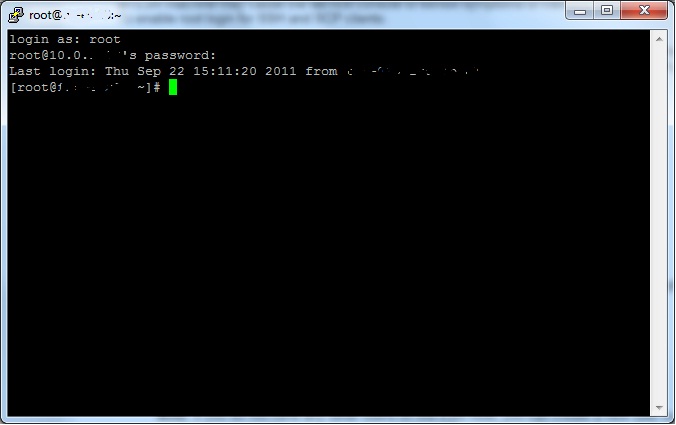
Log in as root

You may want to delete the user account (in this example ‘testuser’) you created earlier at this stage, as it is no longer required.

References:

http://kb.vmware.com/selfservice/microsites/search.do?language=en_US&cmd=displayKC&externalId=8375637

http://kb.vmware.com/selfservice/microsites/search.do?cmd=displayKC&externalId=1024235

Renewing an SSL certificate on Exchange 2007

The other day i noticed event 64 with a source of CertificateServicesClient-Autoenrollment, in the event log on one of our Exchange 2007 Client Access servers. I was aware that the SSL certificate on this server was due for renewal in the near future, but this was a timely reminder:

Event ID 64 Source CertificateServicesClient-AutoEnrollment

In order to double check which certificate was expiring on this CAS server, I ran the following command in the Exchange Management Shell:

Get-ExchangeCertificate | FL

This lists all the certificates that Exchange is using along with all the details of each certificate, including the thumbprint. You can compare the thumbprint on the event log message, to those in the list from the above command, to see which certificate the message is referring to.

Next you should create a new certificate signing request (CSR) by issuing the following command in the Exchange Management Shell:

New-ExchangeCertificate -GenerateRequest -Path c:\CERT_REQUEST.CSR -KeySize 2048 -SubjectName “c=GB, s=YOUR_COUNTY_OR_STATE, l=YOUR_CITY, o=YOUR_ORGANISATION_NAME, ou=YOUR_DEPARTMENT, cn=YOUR_SERVER_FQDN” -DomainName autodiscover.YOUR_DOMAIN_NAME, YOUR_SERVER_LOCAL_DOMAIN_NAME, YOUR_SERVER_NETBIOS_NAME -PrivateKeyExportable $True

In the example above the capitalised parameters can be described as follows:

CERT_REQUEST.CSR – The name of the file that the certificate request will be exported to, in this case to the root of the c:\ drive

YOUR_COUNTY_OR_STATE – The name of the county or state for the certificate

YOUR_CITY – The name city for the certificate

YOUR_ORGANISATION_NAME – The name of your Company

YOUR_DEPARTMENT – The name of your department

YOUR_SERVER_FQDN – The fully qualified domain name (i.e. the public name of your server, that is registered with your external DNS provider)

autodiscover.YOUR_DOMAIN_NAME – The subject alternative name for autodiscover where the YOUR_DOMAIN_NAME part is your external domain name

YOUR_SERVER_LOCAL_DOMAIN_NAME – The internal fully qualified domain name of your server, if it is different to the external fully qualified domain name

YOUR_SERVER_NETBIOS_NAME – The NETBIOS name of your server

For example:

New-ExchangeCertificate -GenerateRequest -Path c:\certrequest.csr -KeySize 2048 -SubjectName “c=GB, s=Hampshire, l=Southampton, o=Oasysadmin Ltd, ou=IT Support, cn=mail.oasysadminltd.com” -DomainName autodiscover.oasysadminltd.com, mail.oasysadminltd.local, mail -PrivateKeyExportable $True

Another easy way to generate the New-ExchangeCertificate command for the certificate request is to use a free tool such as Digicert’s Exchange 2007 CSR Tool. Just fill in the fields and click generate, and then copy and paste the generated command into the Exchange Management Shell, and press enter to generate the CSR.

Once you have created your certificate signing request, you will need to open it in Notepad, and copy and paste the contents into the certificate renewal web page of your 3rd party SSL provider (e.g. Thawte, Verisign, Godaddy, Digicert to name just a few). This process cannot really be covered here, as it is different for all SSL certificate providers. When the certificate request has been processed and validated by your 3rd party SSL provider, they should provide you with a .cer or .crt certificate file which can be imported and enabled on your Exchange server.

Copy the .cer or .crt file issued by our SSL provider to a location on the Exchange server. In this example we have copied the the .cer file to the root of the C:\ drive on the Exchange server, where NEW_CERT is the name of the file.

Import-ExchangeCertificate -Path c:\NEW_CERT.cer

Once the new certificate is imported, it needs to be enabled for specific Exchange services such as IIS, POP, IMAP and SMTP. To do this you will need the thumbprint of the new certificate, which you can get by issuing the following command again:

Get-ExchangeCertificate | FL

Once you have the thumbprint you can type in the following command to enable the certificate, where YOUR_THUMBPRINT is the thumbprint of your new certificate:

Enable-ExchangeCertificate -thumbprint YOUR_THUMBPRINT -services IIS,SMTP,POP,IMAP

Note that the above command enables this certificate for IIS, SMTP, POP and IMAP. You can enable the certificate for specific services only e.g. just IIS if you want.

You can verifiy that the new certificate is installed OK by connecting to the FQDN of your Exchange server in your preferred browser, and viewing the properties of the installed certificate.

For completeness once you have verified that the new certificate is functioning properly you can remove the old certificate by typing the following command in the Exchange Management Shell, where OLD_THUMBPRINT is the thumbprint of the old obsolete SSL certificate which you have now replaced:

Remove-ExchangeCertificate -thumbprint OLD_THUMBPRINT

Move a file share to a new server using Robocopy

Robocopy is a command line tool that has been around for years, but is still really useful today. It is part of the Windows Server Resource Kit Tools. You will need to install these in order to use the robocopy command. Essentially it is a tool for copying files from one location to another, but with some significant extra advantages over the standard xcopy command. The main advantages that I can see are these:

  • The ability to copy NTFS permissions, if you want to
  • The ability to skip files that have been copied previously, provided that they have not changed

For the reasons above it is still ideal for using when you want to quickly migrate the contents of a file share to a new server. To do this first set up the new file share on the new destination server, making sure the share and NTFS permissions match those that are configured on the old share on the old server.

Next enter the following command in a new batch file, where OLDSERVER is the old file server name, and OLDSHARE is the old share name, and NEWSERVER is the new server name and NEWSHARE is the new share name:

robocopy “\\OLDSERVER\OLDSHARE\” “\\NEWSERVER\NEWSHARE” /S /E /COPY:DATS

The command basically tells robocopy to copy the contents from the UNC path of the old share, to the UNC path of the new share. The /S and /E tell robocopy to copy any subdirectories, and empty directories. In this example the /COPY:DATS tells robocopy to copy the Data, Attributes, Timestamps and Security information. There are a couple of other elements that you can also copy if you want. To copy everything use /COPY:DATSOU or alternatively /COPYALL. Here is a list of all the flags you can use with the /COPY: part of the command:

D – Data

A – Attributes

T – Timestamps

S – Security i.e. NTFS permissions

O – Owner information

U – Auditing information

The beauty of this solution is that you can run this script during the day, when users are on the system to do the initial copy which depending on how much data is in the share could take a while (that said, this is obviously not a good idea if you are copying the contents to a remote server over a slow WAN link). Then out of hours you can run the script again, but this time it will only copy any files which have changed since the last copy making the copy process a lot quicker. Then all you need to do is change the path for any drive mappings you have in your login script, or group policy preferences, to point to the new file share on the new server. When your users come in the following day, they will will be blissfully unaware that the data has been relocated.

Robocopy has other uses too, and various other options check the help information for more details using:

robocopy /?