Force KCC (Knowledge Consistency Checker) to run on a domain controller

Sometimes after demoting domain controllers you may be left with inconsistent NTDS connection objects in Active directory. In my case there was an NTDS connection object listed under one of the domain controllers at our central site which referenced a recently demoted domain controller at a remote site. I needed an NTDS connection object pointing pointing to the newly installed DC at the remote site instead. To fix this i simply deleted the incorrect NTDS connection object in the ‘Sites and Services’ console, from the central site domain controller, and then forced KCC to run on the same domain controller by running:

repadmin /kcc

This forces the domain controller that you run the command on to check its inbound replication topology immediately and generate any missing connections. After running this command a new NTDS connection object was generated from the new DC at the remote site. This can either be verified by checking under the Domain Controllers NTDS Settings, in the ‘Sites and Services’ Console or by running:

repadmin /showrepl

tftp timeout on PXE boot when using WDS

I came across a peculiar problem today when trying to PXE boot a client computer on a newly commissioned Windows 2008 WDS server. This server had been commissioned in exactly the same way as all of our other WDS servers, but the client refused to boot the wim image that we had published in the WDS server. We recieved the message ‘tftp timeout’. We could tell that the client machine was picking up an IP address ok from the DHCP server, it seemed though, that it was unable to download the wim image file from the WDS server. We turned on WDS client logging and increased the logging level using the following 2 commands:

WDSUTIL /Set-Server /WDSClientLogging /Enabled:Yes

WDSUTIL /Set-Server /WDSClientLogging /LoggingLevel:info

Further information on enabling logging for Windows Deployment Services can be found here. After doing so we could see event: 4101 Source: Deployment-Services-Diagnostics stating ‘The following client failed tftp download’ as shown below:

Event ID: 4101 Source: Deployment-Services-Diagnostics

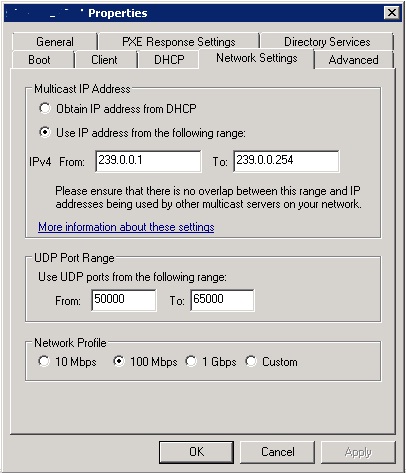
In this particular scenario we had WDS, DHCP and DNS installed on the same server. After a bit of digging we found the following Microsoft KB article (KB977512). It turns out when you have DNS and WDS installed on the same server there is the potential for DNS to grab the entire port range that WDS uses for tftp, preventing clients from connecting. The workaround is to increase the size of the port range on the WDS server so that it is larger that the range that is used for DNS. To do this you need to open the Windows Deployment Services console and right click on the affected server and choose properties. Once in the properties screen amend the UDP port range in the ‘Network Settings’ tab to 50000 to 65000 as shown below:

Amend the UDP port range in WDS Network settings

Click OK and you’re done. It also turns out that this problem has been fixed in Windows Server 2008 R2, which is why we hadn’t experienced this on our other WDS servers.

Move a file share to a new server using Robocopy

Robocopy is a command line tool that has been around for years, but is still really useful today. It is part of the Windows Server Resource Kit Tools. You will need to install these in order to use the robocopy command. Essentially it is a tool for copying files from one location to another, but with some significant extra advantages over the standard xcopy command. The main advantages that I can see are these:

  • The ability to copy NTFS permissions, if you want to
  • The ability to skip files that have been copied previously, provided that they have not changed

For the reasons above it is still ideal for using when you want to quickly migrate the contents of a file share to a new server. To do this first set up the new file share on the new destination server, making sure the share and NTFS permissions match those that are configured on the old share on the old server.

Next enter the following command in a new batch file, where OLDSERVER is the old file server name, and OLDSHARE is the old share name, and NEWSERVER is the new server name and NEWSHARE is the new share name:

robocopy “\\OLDSERVER\OLDSHARE\” “\\NEWSERVER\NEWSHARE” /S /E /COPY:DATS

The command basically tells robocopy to copy the contents from the UNC path of the old share, to the UNC path of the new share. The /S and /E tell robocopy to copy any subdirectories, and empty directories. In this example the /COPY:DATS tells robocopy to copy the Data, Attributes, Timestamps and Security information. There are a couple of other elements that you can also copy if you want. To copy everything use /COPY:DATSOU or alternatively /COPYALL. Here is a list of all the flags you can use with the /COPY: part of the command:

D – Data

A – Attributes

T – Timestamps

S – Security i.e. NTFS permissions

O – Owner information

U – Auditing information

The beauty of this solution is that you can run this script during the day, when users are on the system to do the initial copy which depending on how much data is in the share could take a while (that said, this is obviously not a good idea if you are copying the contents to a remote server over a slow WAN link). Then out of hours you can run the script again, but this time it will only copy any files which have changed since the last copy making the copy process a lot quicker. Then all you need to do is change the path for any drive mappings you have in your login script, or group policy preferences, to point to the new file share on the new server. When your users come in the following day, they will will be blissfully unaware that the data has been relocated.

Robocopy has other uses too, and various other options check the help information for more details using:

robocopy /?