Which firewall ports to open to allow browsing of instance names and connections to SQL Server 2008 R2

By default Windows Server 2008 will block incoming connections to the SQL Server browser service, and to the SQL server default instance. If you are trying to connect to a SQL server instance, but are unable to browse to it under ‘network servers’ you need to open UDP port 1434. Firstly make sure the SQL Server Browser Service is started on the SQL server that you wish to advertise the instance for. Next fire up the ‘Windows Firewall with Advanced Security’ mmc snapin and create a new inbound rule. Create the rule for a port and specify the port as UDP port 1434 as shown below:

Allow incoming connections to named instances by opening UDP port 1434

To allow clients to connect the default instance and to access databases attached to that instance you will also need to open TCP port 1433. This can be done as above, by creating a new incoming rule for TCP port 1433 as shown below:
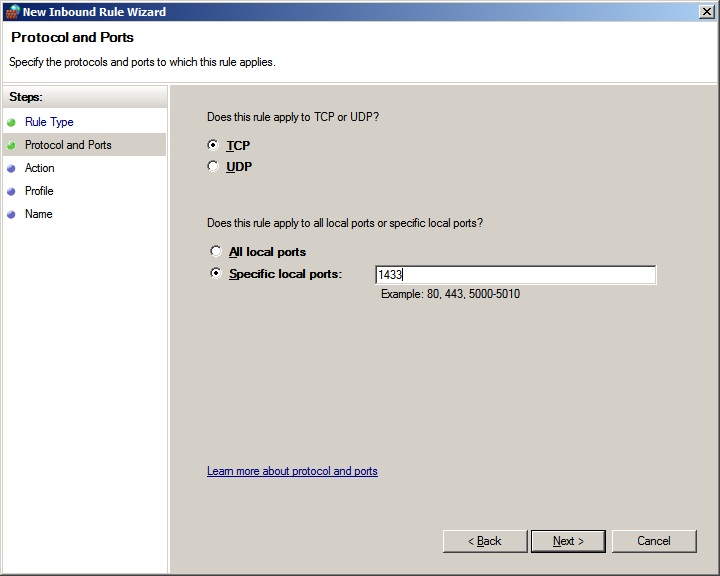
Open TCP port 1433 on SQL server 2008 R2 to allow connnections to the default instance

If desired you may wish to lock down these rules to certain profiles e.g. Domain, or even to certain subnets or hosts to help increase security. Also bear in mind that it is not best practice to have the SQL Browser Service enabled. Additional relevant SQL ports which you may wish to open can be found on the Microsoft site here:

Configure the Windows Firewall to allow SQL Server Access

These include:

TCP 1434 “SQL Admin Connection”
TCP 4022 “SQL Service Broker”
TCP 135 “SQL Debugger/RPC”
TCP 2383 “Analysis Services”
TCP 2382 “SQL Browser”

If using a named instance using dynamic ports you may wish to create a program rule with an exception for sqlservr.exe, normally found in

%ProgramFiles%\Microsoft SQL Server\MSSQL_YOUR_VERSION_NUMBER.YOUR_INSTANCE_NAME\MSSQL\Binn\

You may also wish to consider opening remote administrion ports on the windows firewall Domain Profile either through ‘Windows Firewall’ or ‘Windows Firewall with Advanced Security’ to allow access to start and stop the SQL server through SQL Management Studio:

Enable Remote Administration Port Rules in ‘Windows Firewall With Advanced Security’


Enable Remote Administration in the ‘Windows Firewall’


Always take extreme care when opening firewall ports, only opening those which are absolutely necessary in order to reduce the attack surface of your servers.

Installing or Renewing a 2048 bit SSL Certificate on Citrix Access Essentials/Xenapp Fundamentals

I had to renew a 2048 bit Godaddy SSL certificate on a Citrix Access Essentials server today. This article on the Citrix knowledgebase explains how to install the certificate in Quick Start, but is a bit light on detail for the IIS part so I thought I would document it here.

Firstly you need to generate a certificate request or renewal request on the Citrix Access Essentials or Xenapp Fundamentals external website in IIS manager. Right click the website and choose ‘properties’, then click on the  ‘Directory Security’ tab. In the ‘Secure Communications’ section click on the ‘Server Certificate’ button, and the server certificate wizard will start. Click Next, and the following screen will appear:

Creating the renewal or certificate request

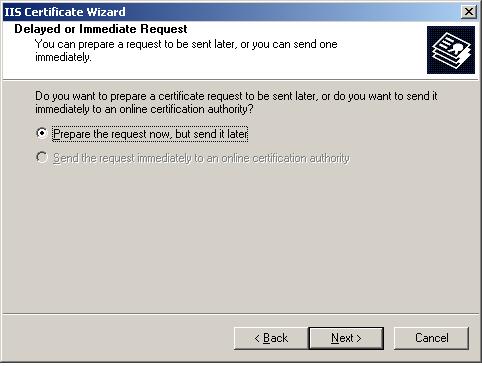
In this case I was renewing the existing 2048 bit certificate, so selected ‘renew the current certificate’ and clicked next. On the next screen choose ‘prepare the request now but send it later:

Preparing the request

Finish the wizard, and save the request for processing with your SSL provider. In this case the provider is Godaddy, but the process will be similar for other providers. Log into Godaddy, select the certificate you want to renew (assuming you have already purchased the renewal credit), and choose ‘Request Certificate’ .

Requesting a new certificate using Godaddy


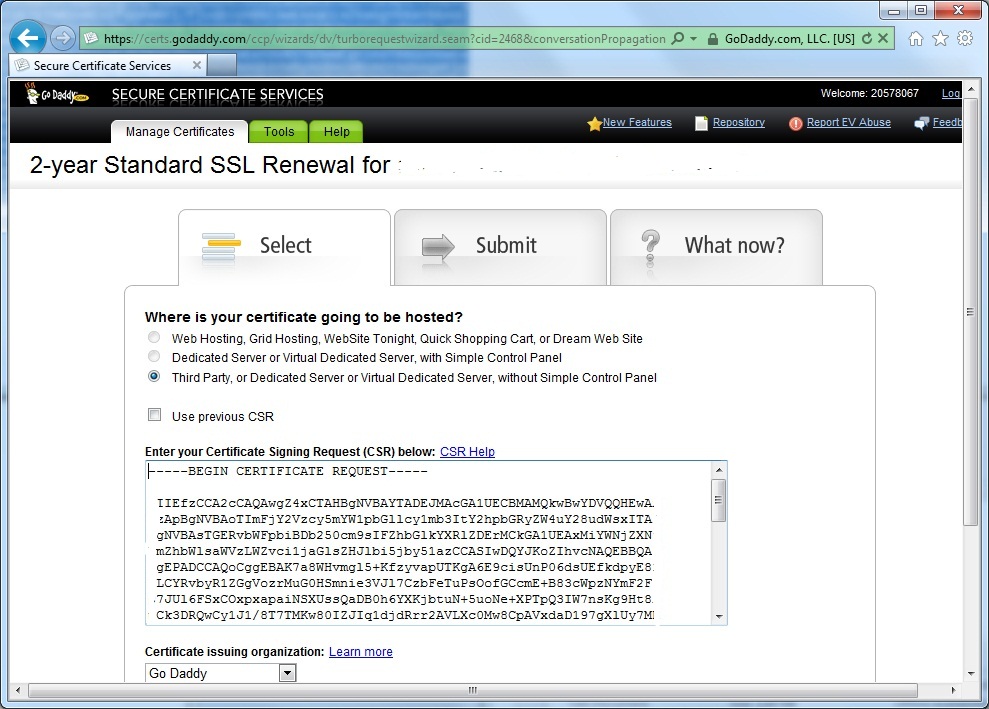
On the next screen select ‘Third Party or Dedicated Server, and then paste the contents of the certificate request that you generated in IIS into the CSR field as shown:

Processing the CSR with Godaddy

Submit the request and then wait for Godaddy to process it, completing any necessary domain control, or other validation processes that may be required. Once the certificate processing is complete, download your new certificate from Godaddy. If this is the first time you have installed a Godaddy certificate on the server you will also need to install intermediate certificates that come in the zip file on your server. Further documentation on this can be found on the Godaddy website here.

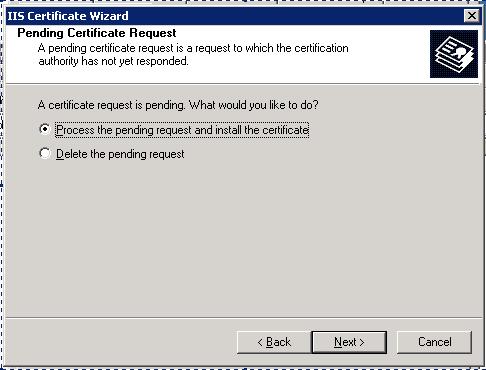
Next install the new certificate using IIS manager. Again, right click the Citrix external website and choose ‘Properties’, then click on the ‘Directory Security’ tab. In the ‘Secure Communications’ section click on the ‘Server Certificate’.  In the wizard choose ‘process the pending request and install the certificate’.

Processing the pending certificate request in IIS

Browse to the new certificate .crt file you downloaded from Godaddy and click next. You may need to select ‘All files’ to view this file.  

Now the next screen can cause a bit of a gotcha. By default the wizard wants to choose standard SSL port 443 to install this certificate on. If you select this port it will conflict with Citrix and cause an error message when accessing the website after installing the certificate. Make sure you select a different port in the wizard, such as 444 to prevent a conflict with Citrix Access Essenstials, then click ‘Next’.

Select an SSL port other than 443, such as 444 in the wizard to prevent a conflict with Citrix

Failure to change the port will result in the error ‘Bad Gateway! The proxy server received an invalid response from the upstream server. Error 502’, which can be seen below:

Error message when installing new SSL certificate on Citrix Access Essentials/Xenapp Fundamentals Bad Gateway error 502

Review the final screen, and complete the wizard. Finally, run up the Citrix quick start tool and choose ‘Manage External Access’, under the ‘External Access’ section. From here you can choose the new certificate to use with Citrix Access Essentials. These steps are documented in the Citrix document. After that you’re done!

Using and verifying HTTP compression on aspx pages in IIS 6

Yesterday I was examining some performance issues with an in house web application over our wide area network. While a developer looked at the code I thought I would see what could be done with http compression. This particular application is hosted on IIS 6 which is unfortunate as there some improvements with http compression in IIS 7. Anyway to enable http compression for aspx or other associated web pages in IIS6 you need to do the following. Firstly enable http compression on the server by right clicking on the ‘Web Sites’ folder in IIS Manager and choosing properties:

Accessing web sites properties

Next, click on the ‘Service’ Tab and check the ‘compress application files’ and ‘compress static files’ tick boxes and then choose a limit for temporary files. Then click OK

Next, download and install the IIS 6 resource kit tools from Microsoft which can be found here. Once the tools are installed open ‘Metabase Explorer’ and navigate to LM, W3SVC, Filters, Compression, deflate. Add the file extensions you wish to compress to HcScriptFileExtensions, in this case aspx, axd, asmx and css. Then change the HcDynamicCompressionLevel to a value between 1 and 10, 1 for low compression with low CPU utilisation, and 10 for high compression with high CPU utilisation. Setting this to a high value such as 9 may not necessarily give that much higher compression than choosing 5, so be careful to choose a value which is a good balance between compression and performance. Then apply identical settings for HcScriptFileExtensions and HcDynamicCompressionLevel  under LM, W3SVC, Filters, Compression, gzip

Modifying HcScriptFileExtensions and HcDynamicCompressionLevel in Metabase Explorer

 Save the configuration in IIS manager and then perform an iisreset from the command prompt.

You can verify the amount of compression you are are getting using a tool such as Fiddler or alternatively browser plugin Httpwatch.

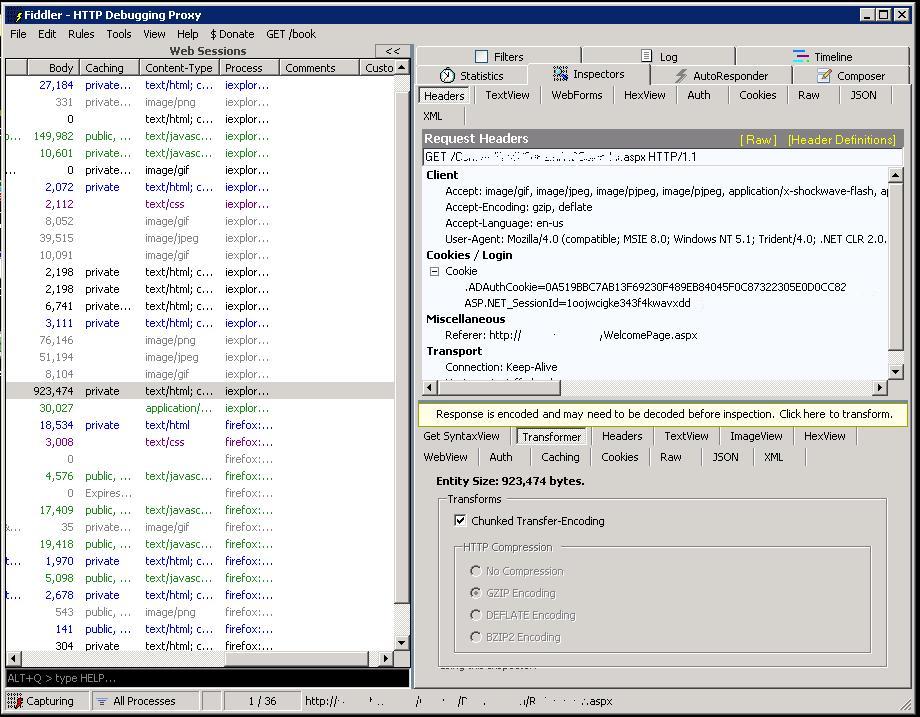
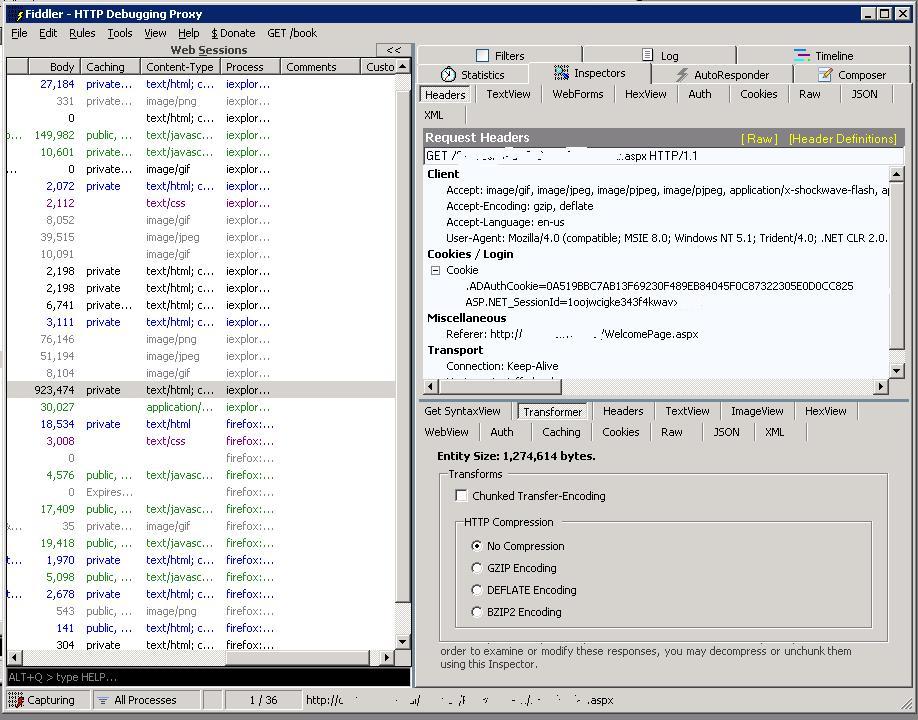
To do this using Fiddler, download and install Fiddler and then run the program. Then access the website as normal, accessing some of the pages that you are attempting to compress. Once you have some entries in the ‘Web Sessions’ pane, click on the page you want to view the compression stats for in the list. The number in the ‘body’ column is the compressed size. In the bottom right section of Fiddler, click on ‘Transformer’ and you will see the compression type:

View compression status in Fiddler

View compression status in Fiddler

You will notice the yellow bar above the ‘transformer’ tab which says ‘Response is encoded and may need to be decoded before inspection, click here to transform’. Click on the yellow bar:

View original entity size before compression status in Fiddler

On this screen examine the ‘Entity Size’ which will be the original size of the page before compression. You can compare this to the body column to see the amount that the page has been compressed, in this case around a 27% saving on bandwidth.