Find an active directory users organizational unit (OU) using Powershell

Have you ever forgotten which organizational unit an active directory user resides in? You can use ‘Active Directory Users and Computers’ to quickly find the user using the ‘Find’ function but this doesn’t easily tell you which OU they belong to. Here is a very quick command to find the organizational unit (OU) that a user belongs to using Powersell, where USERNAME is the username  of the user you wish to examine. Simply run the Powershell, and then enter:

Get-ADUser USERNAME

This will return the users details, including the Distinguished Name of their account, which will show which OU they belong to.

Using Get-ADUser to obtain OU information

If you don’t know their username, you can use the filter option to search by firstname or surname. Here is an example filtering by surname where USER_SURNAME is the users surname:

Get-ADUser -filter {Surname -like “USER_SURNAME“}
Back Up All Group Policy Objects using Backup-GPO and the Group Policy Management Console

Here are a couple of quick methods to backup all of your group policy objects in one hit. The first uses the Powershell cmdlet Backup-GPO. On a Windows Server 2008 domain controller fire up Powershell, and issue the following command, where C:\PATH_TO_BACKUP is the path where you want to save the backup:

Backup-GPO -All -Path C:\PATH_TO_BACKUP

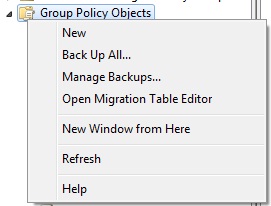
The second method uses the Group Policy Management Console. Fire up gpmc.msc, and then expand your domain. Right click on ‘Group Policy Objects’ and then choose ‘Back Up All’ as shown below:

Backing up all GPOs using the Group Policy Management Console

Browse for a location to back up to, and give a description if you need one, then click Back Up and you’re done:

Choose a location and description for the GPO backup


References:

http://technet.microsoft.com/en-us/library/ee461052.aspx

Back Up a Certificate Authority in Windows Server 2008

Here are 2 manual methods to easily back up a Certificate Authority in Windows server 2008. The first method uses the ‘certutil’ utility from the command line. Simply open ‘cmd’ and type the following, where C:\CA_BACKUP is the path which you want to save the backup to:

certutil -backup C:\CA_BACKUP

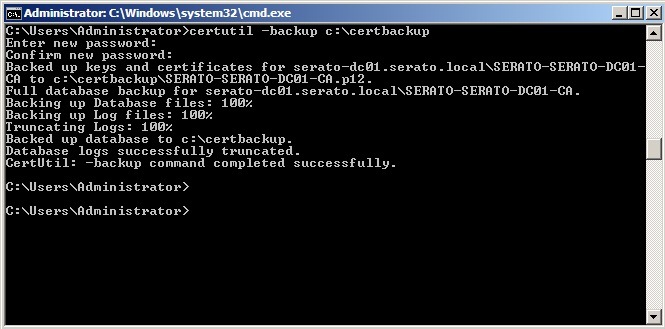
You will see something like the output shown here:

Using the certutil -backup command

Notice that you are required to enter a password for the backup file in order to keep your CA data secure. Your backup files will now be found in the location you specified.

The second method uses the ‘Certificate Authority’ console. Using this method open the ‘Certificate Authority’ console and then right click on your CA and choose ‘All Tasks’ and then ‘Backup CA’ as shown:

Choosing 'Back up CA'

The first page of the Certificate Authority Backup Wizard is displayed, click ‘Next’:

The CA Backup Wizard

Choose which items you wish to back up, and then choose a location for your backup, then click ‘Next’:

Choose a backup location

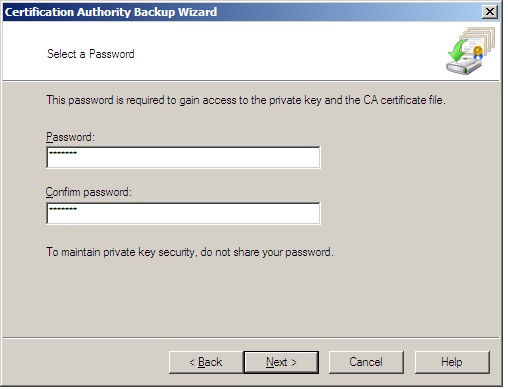
Provide a password for the backup, and click ‘Next’:

Provide a password for your backup

Click ‘Finish’ complete the wizard and make your backup:

Complete the CA backup Wizard

As mentioned earlier these are manual methods for backing just the Certificate Authority data on a CA machine. You can always use schedule full system state backups using wbadmin, or your chosen third party backup tool, which will also backup this information.