FRS or DFSR not replicating certain files

I had an issue today where a file that I had added to the SYSVOL share on my network, hadn’t been replicated to other domain controllers. The file was a jpeg that had been created by our designer, which needed to be pushed out to client computers using group policy preferences. I modified the GPO last week, but noticed this morning that the file wasn’t being to copied to all client computers. I had a look at the location where I had created the file in the SYSVOL share on various domain controllers, and found that the file hadn’t been replicated to any of them. In fact, it was only present on the server that I had originally copied it to.

I checked the logs on a few of the domain contollers for errors with the File Replication Service, but there were none. Next I created a test text file in the SYSVOL share to see if it replicated to other domain controllers and it replicated straight away. On further investigation I discovered that the temp attribute had been set on the jpeg file for some reason when it was created, and therefore it was being ignored for the purposes of replication by FRS, which is the standard behaviour, and also applies to DFSR.

You can’t view the temp or ‘T’ attribute using the attrib command, so a grabbed a utility called BulkFileChanger which verified this and allowed also allowed me to quickly remove the temp attribute. I then recopied the file to the SYSVOL share and it replicated to the other servers as normal.

Alternatively, you could use fsutil to discover the current attributes set on the file or files, and then use powershell to reset the attributes as outlined in the technet article below.    

References:

http://social.technet.microsoft.com/wiki/contents/articles/dfsr-does-not-replicate-temporary-files.aspx


Force reboot of a remote server that has hung shutting down

I had an issue last night when a remote server that I was applying windows updates to, hung while it was shutting down. I will still able to ping the server, and access its file shares, but was unable to get RDP access. I was cursing at this point, with the prospect of a long journey the following day to investigate and bring the server back online. I then considered what other steps I could take to try and force the server to reboot remotely. I used the PSTools command psexec to see if I could still get command line access to the remote server, and fortunately I could. Next I tried to force a reboot of the remote server using psexec and the shutdown command as follows, where REMOTE_SERVER_NAME is the name of the remote server that I was trying to reboot:

psexec \\REMOTE_SERVER_NAME shutdown /r /t 01

alternatively you could use:

shutdown /m \\REMOTE_SERVERNAME /r /t 01

This returned the following error:

1115 A system shutdown is in progress

This basically meant that a system shutdown was already in progress,  and therefore the command was unable to force a reboot. In the end I used the pskill command to stop the winlogon service on the remote server to try and release whichever process wass causing the server to hang on shutdown. I should stress that this was a last resort, and not something that I would recommend doing unless essential:

pskill \\REMOTE_SERVER_NAME  winlogon

Anyway, after another few minutes the remote server did finally restart, although there are a few other things that I should mention that happened in the process. The operating system on this machine was Windows Server 2008 R2. After the server came back up (verified by ping -t REMOTE_SERVER_NAME) I tried to RDP the box again. I was able to enter my credentials and the logon process appeared to start, but after a few seconds the following message appeared on the screen:

Please wait for the Windows Modules Installer

The machine sat like that for quite some time, and then started ‘Configuring Updates’. My RDP session then abruptly ended and the server restarted itself again. Again, when it was back up I tried to RDP the server again and received the ‘Please wait for the windows modules installer message’ for a second time. Thankfully, after a few minutes and another ‘configuring updates’ message, logon continued and ther server was back up and running. On checking the event log and windows update log I was able to verify that all the updates had installed OK, and there were no other errors worthy of note. So in summary, if you want to save yourself a long trip, to most likely press a power or reset switch, you may want to try the above first.    


Generate a new SID on Windows Server 2008 and Windows 7

With the NewSID tool no longer supported by Microsoft for more recent versions of Windows, you may find yourself in a situation where you need to generate a new SID on a Windows Server 2008 or Windows 7 computer, and wonder which tool you need to use. I myself have run across an issue in the past in our development environment where duplicate SIDs caused a problem. Care needs to be taken when cloning Windows virtual machines, particularly if they will later be used as domain controllers.

In order to avoid any issues like this, the new preferred method to set a new SID on a Windows machine is to use Sysprep. Before running Sysprep, you may wish to verify the current SID on the sytem that you wish to modify. This can easily be done by running the psgetsid utility, which is part of the excellent Pstools developed by Mark Russinovich. The output of the psgetsid command can be seen below, showing the current machine SID:

Output of psgetsid before running Sysprep on Windows Server 2008 R2

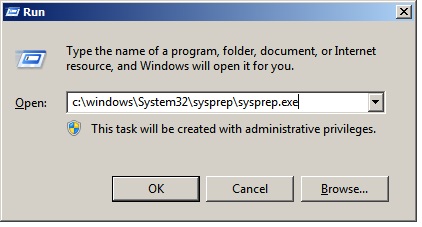
 Next you can sysprep by running the following command:

C:\Windows\System32\Sysprep\sysprep.exe

Running Sysprep
 
On the Sysprep, screen make sure that you tick the ‘Generalize’ tick box as shown below:
 

Choose settings for the System Preparation Tool

 The Sysprep process will take a few minutes to run, and will automatically reboot the system if you chose to do so. On reboot, the following screen will be displayed. Click ‘Next’ to continue:


Click next to continue the Sysprep process

 After the sysprep process is complete, you can run psgetsid again to verify that a new SID has been generated for this computer:

Output of psgetsid after running Sysprep on Windows Server 2008 R2