Restrict or filter GAL access for OWA users using MSExchQueryBaseDN in Exchange 2007
January 9, 2012 Leave a comment
A while ago we had a situation where this was a requirement. In our case there were several groups of users who would only be accessing email through OWA, and only needed contact information for a subset of staff. We were able to use custom address lists and the MSExchQueryBaseDN user attribute to solve this problem.
If you run adsiedit.msc and look at the properties of a user object you can scroll down the list of attributes to find MSExchQueryBaseDN.
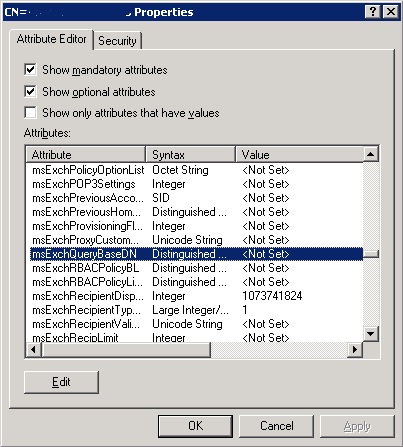
The MSExchQueryBaseDn attribute in adsiedit
In order to limit which contacts a particular user or group of users can access, firstly you need to set up a new Address List either using the Exchange Management Console, or Exchange Management Shell. The address list should contain the contacts that you want the user or group of users to be able to view. Please note that you could point the MSExchQueryBaseDN attribute to an Organizational Unit, so it would filter contact information for just the users in that OU, but if you need the flexibilty to include contact information for users from various OUs in active directory, it may be easier to use a custom address list.
Once this is done you need to set the MSExchQueryBaseDN attribute of each of the users who you want to restrict to the distinguished name of the address list you created.
e.g.
CN=YOUR_RESTRICTED_ADDRESS_LIST,CN=All Address Lists,CN=Address Lists Container,CN=First Organization,CN=Microsoft Exchange,CN=Services,CN=Configuration,DC=YOUR_DOMAIN,DC=local
Where YOUR_RESTRICTED_ADDRESS_LIST is the name of your address list and YOUR_DOMAIN is the name of your domain.
Obviously it would be too time consuming to set this attribute manually for hundreds of users so you could either use ADModify if you want to use a GUI:

Set MSExchQueryBaseDN using ADModify.Net
To reset to the default value using ADModify.Net use a value of ‘null’.
You could also use to achieve this in Powershell if you would prefer to use the command line. Further details can be found here.
Please note: Using this attribute in Exchange 2010 SP1 may result in undesirable consequences. It has been reported that if this attribute is used you may find that users with the attribute set cannot view the contents of their address list, particularly in Outlook.

 oasysadmin