~/copying, moving and replicating the mdt 2010 deployment share
Three ways we got an MDT deployment share out to branch offices: a simple copy, linked deployment shares and DFS Replication. Archived, as MDT is now retired.
Archived post. Microsoft retired the Microsoft Deployment Toolkit (MDT) in January 2026. It no longer gets updates or support. I’ve kept this post because people still read it, and DFS Replication and the bootstrap.ini approach may still help anyone running an existing MDT setup. For new deployments, Microsoft recommends Windows Autopilot, or Configuration Manager OSD for on-premises environments.
During our Windows 7 and Office 2010 rollout, we set up MDT 2010 on each branch office’s Windows Server 2008 server to automate the client upgrades. We’d been using MDT at our central site to build and rebuild computers, but to roll Windows 7 out quickly we needed the same thing at every branch. Once the Windows 7 SP1 task sequence was finished, we looked at ways to get the central deployment share out to the branches, and came up with three.
Method 1: Simple copy
The simplest option is to copy the deployment share to a USB drive, copy it onto the branch server and add it to the Deployment Workbench there. The one important change is the DeployRoot setting in bootstrap.ini, in the share’s Control folder. Change it to the UNC path of the share on the new server:
DeployRoot=\\NewServerName\DeploymentShare$
You can also update the path in the deployment share’s properties:
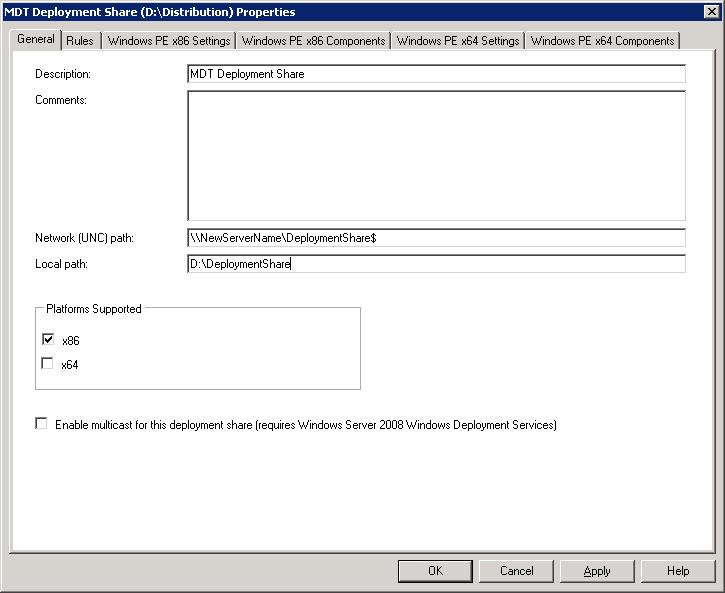
Watch for any hard-coded references to the old server’s path in custom scripts you use to install applications or make customisations. Finally, right-click the share in the Deployment Workbench and choose Update Deployment Share.
Method 2: Linked deployment shares
The simple copy is a quick fix, but changes made on the central server don’t reach the branch copy. You’d have to copy the share, or parts of it, again by hand each time.
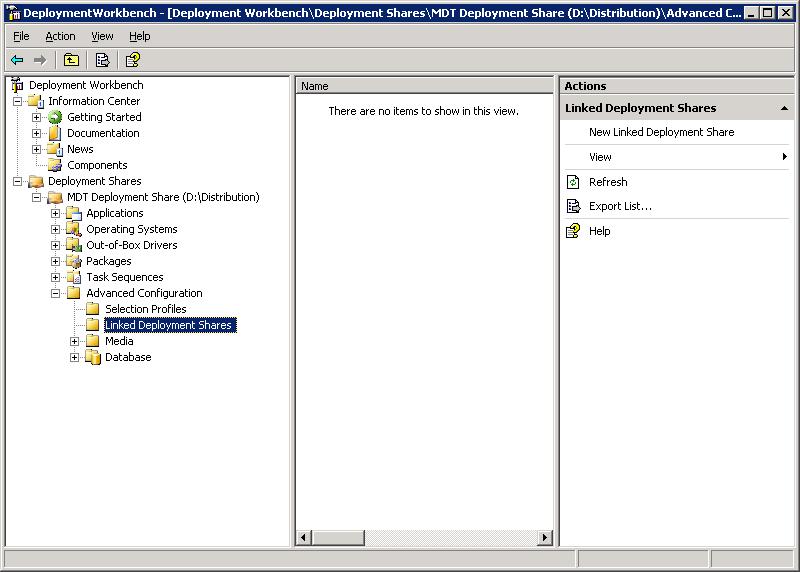
MDT 2010 introduced linked deployment shares, which replicate all or part of a central share to other servers. You might, for example, replicate only the drivers folder. You set links up under Advanced Configuration in the Deployment Workbench:
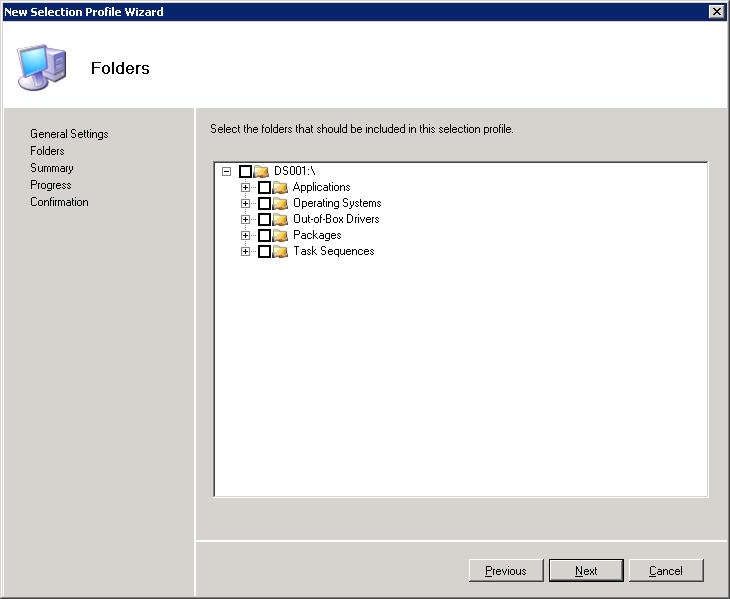
Selection profiles define what gets replicated. There are some predefined ones, or you can create your own by right-clicking Selection Profiles and choosing New Selection Profile:
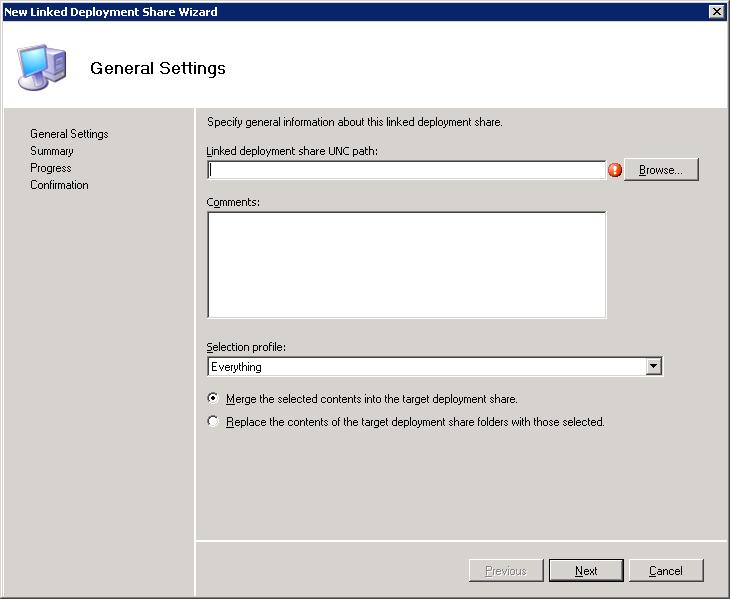
Then right-click Linked Deployment Shares and choose New Linked Deployment Share. Enter the UNC path to the branch share, pick a selection profile, and choose whether to merge with or replace the content at the other end:
To replicate, right-click the link and choose Replicate Now. That’s a manual step, but you can script it in PowerShell and run it as a scheduled task.
The downsides: with many branches you end up managing a lot of links and scheduled tasks, and performance over slow WAN links isn’t great. Links use SMB and robocopy, which is slow over limited bandwidth, especially for the first copy.
Method 3: DFS Replication
The last option we tried was DFS Replication. It keeps content in sync automatically, can be throttled during business hours, and compresses traffic over slow links, so much less bandwidth is needed than with linked shares.
What we read suggested a standalone DFS root rather than a domain-based one for a deployment share. We set up a hub-and-spoke replication group, with the central server as the hub and the branches as spokes, which scales easily as you add branches.
The catch is that bootstrap.ini contains a hard-coded path to the central share, which has to work at every branch. We found two ways round it.
Option 1: use the %WDSServer% variable. Point DeployRoot at whichever WDS server the client booted from. This works anywhere, as long as the share has the same name on every server:
DeployRoot=\\%WDSServer%\YOUR_DEPLOYMENT_SHARE_NAME$
Option 2: use the client’s default gateway. When a client PXE boots, the default gateway it gets from DHCP shows which site it’s at, so you can send it to the right share:
[Settings]
Priority=DefaultGateway, Default

[Default]
OSInstall=Y
SkipBDDWelcome=Yes

[DefaultGateway]
10.0.1.254=Branch1
10.0.2.254=Branch2
10.0.3.254=Branch3

[Branch1]
DeployRoot=\\Branch1Server\DFSRoot\DeploymentShare$

[Branch2]
DeployRoot=\\Branch2Server\DFSRoot\DeploymentShare$

[Branch3]
DeployRoot=\\Branch3Server\DFSRoot\DeploymentShare$
What we chose
We went with a standalone DFS root to replicate the share to each site, so branch content was always up to date, and used the DefaultGateway method in bootstrap.ini to point each site at its local share. Then we installed MDT 2010 and the Windows Deployment Services role on each branch server, and added the replicated share in the Deployment Workbench.