~/back up all group policy objects with backup-gpo and the gpmc
Back up every GPO in one go with PowerShell or the Group Policy Management Console, plus the links, WMI filters and reports a GPO backup leaves out.
Updated November 2026. The commands are unchanged. I’ve added what a GPO backup doesn’t cover, and how to schedule it.
Method 1: PowerShell
On a domain controller, or any machine with the Group Policy RSAT tools:
Backup-GPO -All -Path "C:\GPOBackups\$(Get-Date -Format yyyy-MM-dd)"
The dated folder keeps each run separate. Create the folder first if your PowerShell version complains it doesn’t exist.
Method 2: the Group Policy Management Console
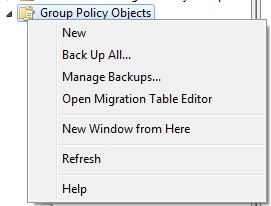
In gpmc.msc, expand your domain, right-click Group Policy Objects → Back Up All…
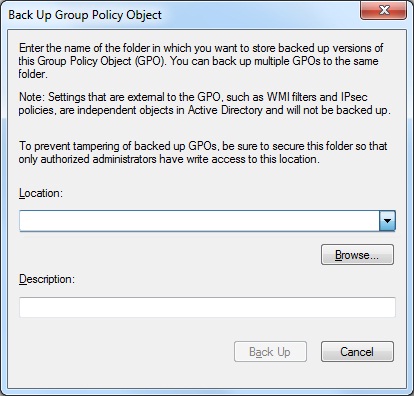
Choose a location and an optional description, then click Back Up.
What a GPO backup leaves out
As the dialog says, settings stored outside the GPO aren’t included:
- Links (where each GPO is linked, enforced or disabled)
- WMI filters
- IPsec policies
Capture the links and a readable record of every setting with:
Get-GPOReport -All -ReportType Html -Path "C:\GPOBackups\GPO-report.html"
Get-ADOrganizationalUnit -Filter * -Properties gpLink | Select-Object DistinguishedName, gpLink |
    Export-Csv "C:\GPOBackups\GPO-links.csv" -NoTypeInformation
Restoring
Restore-GPO -Name "Workstation Baseline" -Path "C:\GPOBackups\2026-11-24"
A restore puts back the GPO’s settings; re-create any links that were removed.
Schedule it
Run Backup-GPO -All as a weekly scheduled task under an account with rights to read the GPOs. Keep the backups somewhere the GPO admins can’t quietly delete them, and secure the folder: GPO backups describe your security settings in detail.