~/back up a certificate authority
Back up an AD CS certificate authority's private key, database and configuration with certutil or PowerShell, and what else to keep so you can actually restore it.
Updated November 2026. Originally written for Windows Server 2008. The tools still work on current versions; I’ve added the PowerShell method and the parts a CA backup usually misses.
A certificate authority backup has to include the CA’s private key. Treat the backup files like the keys to your network: anyone holding them can issue certificates your organisation trusts.
Method 1: certutil
From an elevated command prompt on the CA:
certutil -backup C:\CABackup
It asks for a password to protect the private key, then saves the key (a .p12 file) and the CA database.
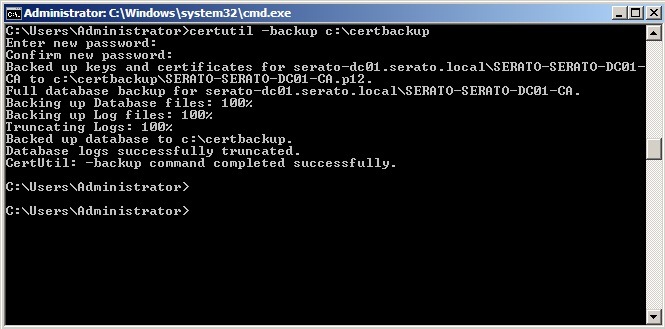 To back up only the database, without the key, use
certutil -backupDB C:\CABackup.
Method 2: PowerShell
Backup-CARoleService -Path C:\CABackup -Password (Read-Host -AsSecureString "Backup password")
Add -DatabaseOnly or -KeyOnly to back up just one part. The cmdlet is in the ADCSAdministration module, installed with the CA role.
Method 3: the Certification Authority console
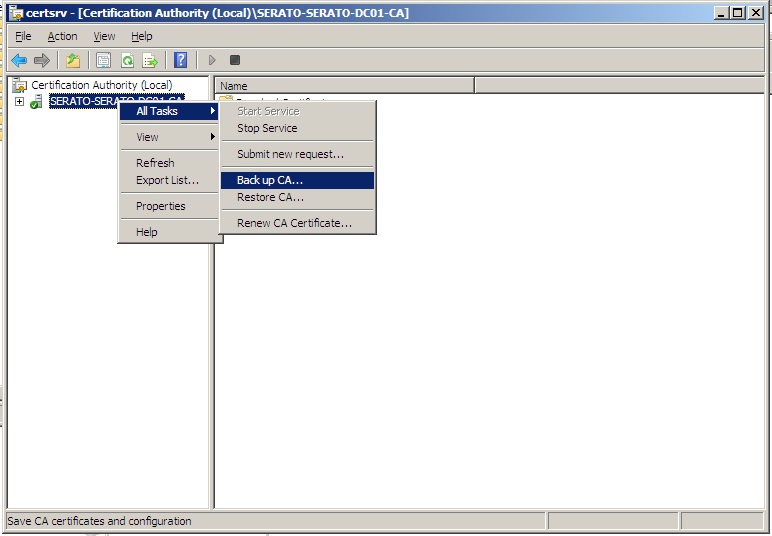
In certsrv.msc, right-click the CA → All Tasks → Back up CA…
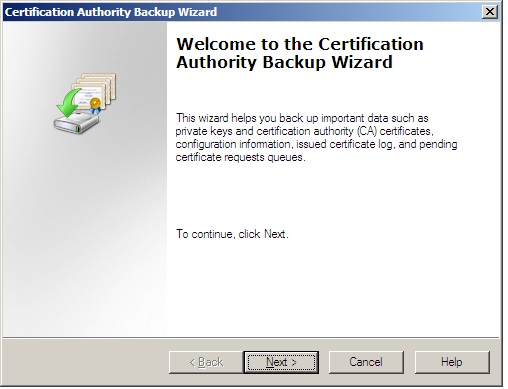
The wizard starts. Click Next:
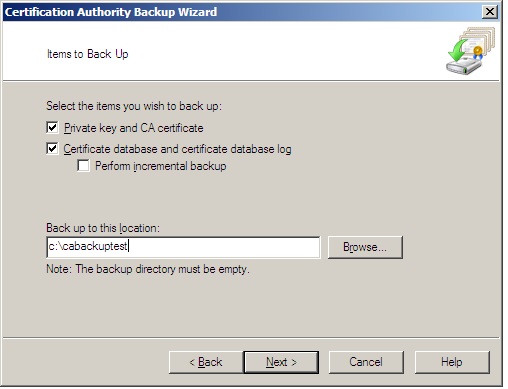
Choose what to back up (the private key and CA certificate, and/or the certificate database and log) and a location:
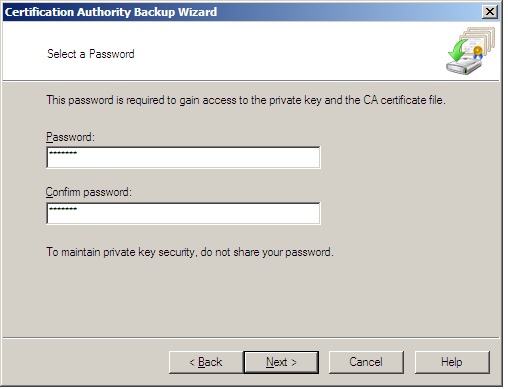
Set a password to protect the private key:
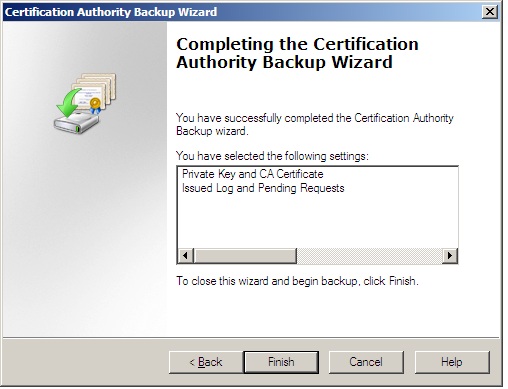
Click Finish to run the backup:
What the backup doesn’t include
To rebuild a CA, you also need its configuration:
reg export HKLM\SYSTEM\CurrentControlSet\Services\CertSvc\Configuration C:\CABackup\CA-config.reg
certutil -catemplates > C:\CABackup\CA-templates.txt
Also keep a copy of C:\Windows\CAPolicy.inf if you have one, and note the CRL and AIA publication locations.
Good practice
- Store backups offline and encrypted, away from the CA, with the password kept separately.
- Automate the database backup with a scheduled task; the key only changes at CA certificate renewal.
- Full system state backups (
wbadmin start systemstatebackup, or your backup tool) also capture the CA. - If the key is in an HSM, these commands won’t export it; follow the HSM vendor’s backup process.
- Test a restore in an isolated lab at least once. An untested CA backup is a hope, not a plan.